How to Use Meesho Label Crop Tool: Complete Guide for Sellers 2026
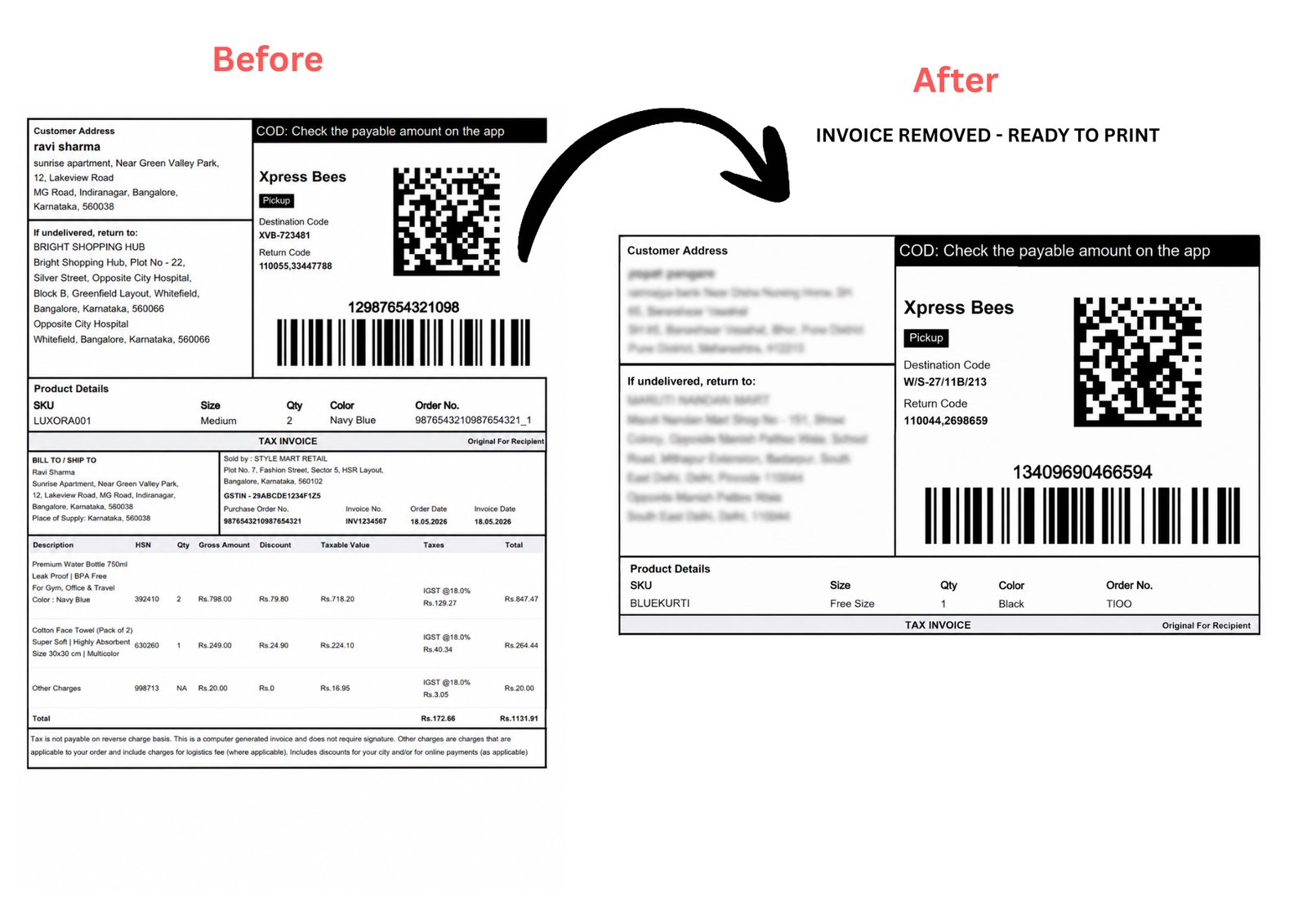
Every Meesho seller in India faces the same daily challenge. You download your shipping label PDF from Meesho Supplier Panel, open it, and discover that each page contains both the shipping label and the complete tax invoice printed together on the same page. If you print this directly, you waste paper, create confusion during packing, and the labels do not fit correctly on thermal printers.
The Meesho label crop tool solves this problem in seconds. You upload your PDF, the tool automatically detects where the shipping label ends and the invoice begins, removes the invoice section, and gives you a clean, print-ready file sized correctly for your printer. This complete guide shows you exactly how to use the free Meesho label cropper on Fast Label Crop.
What Is a Meesho Label Crop Tool?
A meesho label crop tool is a free web-based application that processes your Meesho shipping label PDF and separates the shipping label from the tax invoice on each page. The output is a clean PDF containing only the shipping labels, correctly sized for either thermal 4x6 inch printers or regular A4 paper printers.
When you download labels from Meesho Supplier Panel, the PDF follows a specific structure. The top portion of each page is the shipping label which goes on the outside of your package for the courier partner to scan. The bottom portion is the tax invoice which either goes inside the package with the product or is kept for your GST records.
Why Meesho Labels Need Cropping Before Printing
Many new Meesho sellers wonder why they cannot just print the raw PDF directly from Meesho Supplier Panel. Here is what happens if you try:
- For thermal printer users: Standard thermal label printers use 4x6 inch rolls. Meesho's uncropped PDF pages are much larger. The printer either refuses to print or clips the label incorrectly. Barcodes print at wrong sizes and become unscannable at pickup.
- For A4 printer users: You print both the shipping label and the full tax invoice on every A4 sheet. That is double the paper usage with no benefit. Creates confusion during packing about which part goes where.
- Common issues: Barcode scanning failures at courier pickup points, labels rejected by Xpressbees or Delhivery, customer addresses printing too small or cut off, reprinting labels wastes time during pickup window.
Step by Step: How to Use Meesho Label Crop Tool
Step 1: Download Your Meesho Shipping Labels
- Log in to Meesho Supplier Panel at supplier.meesho.com
- Go to Orders then Pending Shipment
- Select all orders for today's dispatch
- Click Download Shipping Labels
- Save the PDF to your device
Step 2: Upload and Crop Your Labels
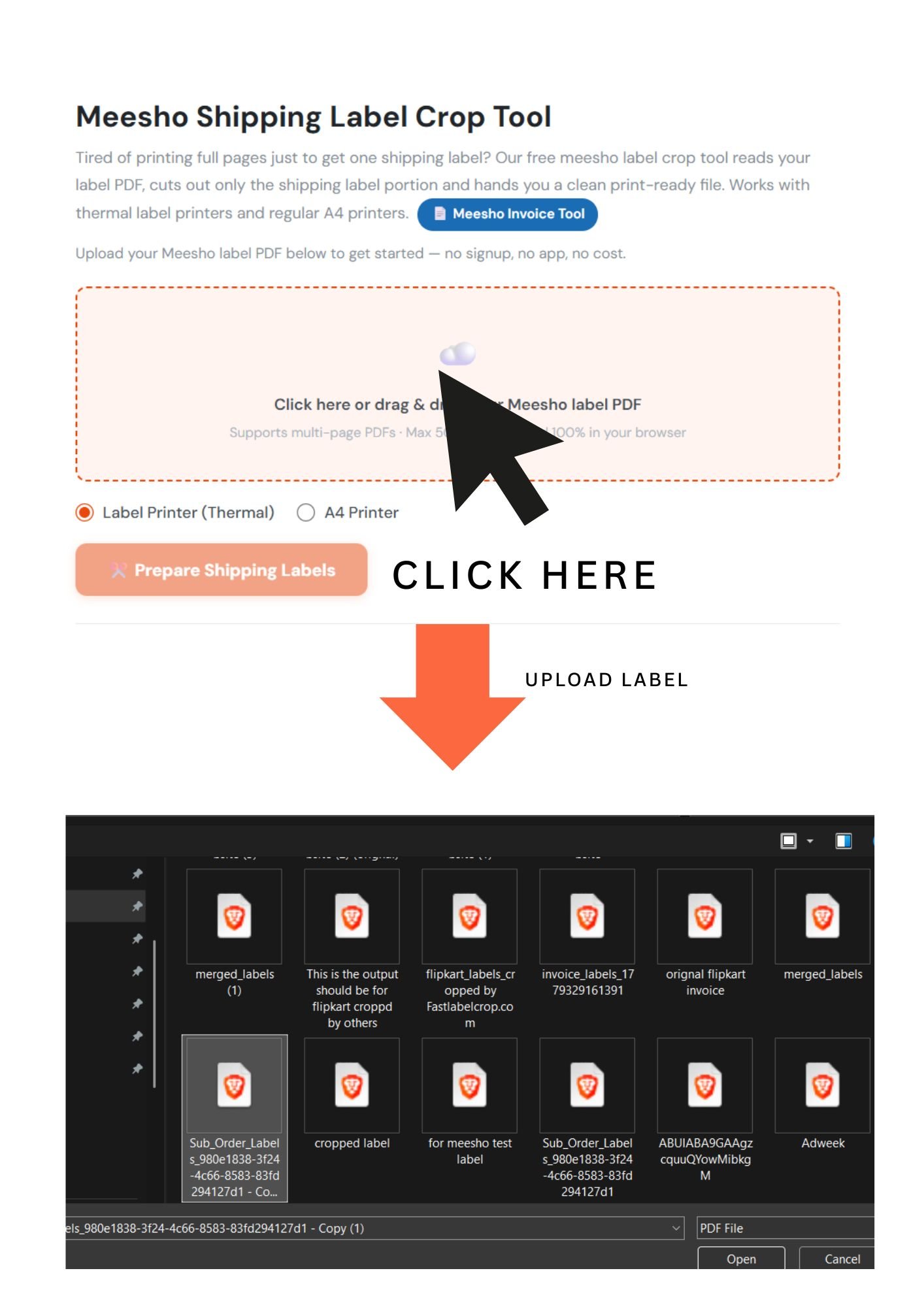
Open Fast Label Crop at fastlabelcrop.com/meesho-shipping-label-crop-tool. No signup required.
- Upload your PDF: Click the upload area or drag and drop. Works entirely in your browser.
- Select printer type: Choose Label Printer (Thermal) for 4x6 inch printers, or A4 Printer for regular printers.
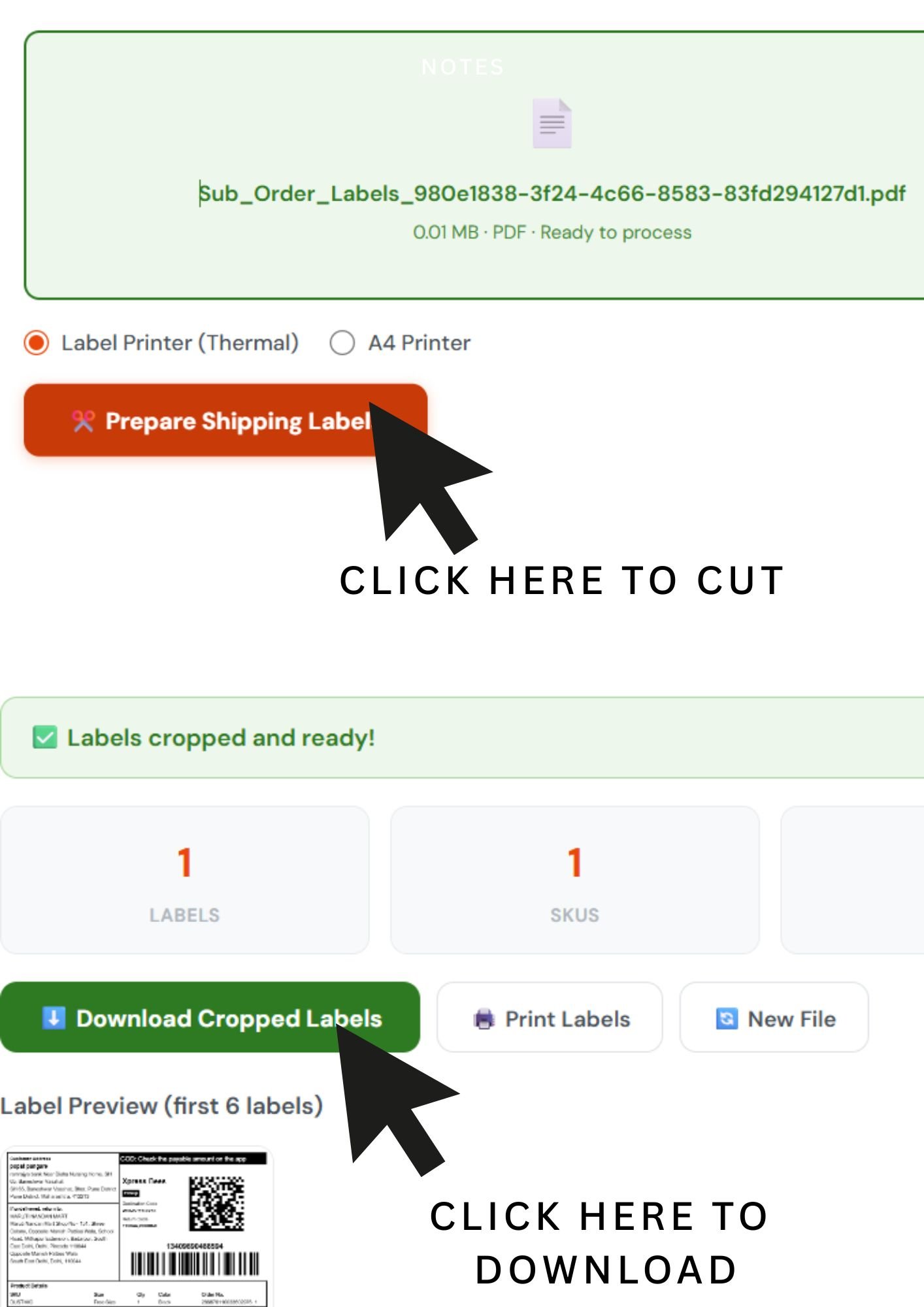
- Click Prepare Shipping Labels: The tool reads each page, locates the TAX INVOICE text, and crops above it. Takes 3 to 10 seconds.
- Download cropped labels: Print at 100% actual size. Never use Fit to Page as it distorts barcodes.
Thermal Printer vs A4 Printer: Which to Choose?
Label Printer (Thermal) Mode
- Output sized at 4x6 inches, fits standard thermal label rolls
- One label per page, peel and stick directly
- Works with RPP300, Xprinter, and all basic thermal printers
- Best for sellers dispatching 20 plus orders daily
- No ink cost, thermal printers use heat
A4 Printer Mode
- Four labels per A4 sheet, saves more paper
- Print on regular A4 or self-adhesive sticker sheets
- Cut and tape, or peel if using stickers
- Best for new sellers. Use our 4-in-1 A4 merge tool to print 4 labels on one sheet and save paper.
Common Mistakes to Avoid
- Using old cached PDFs: Always download fresh labels on dispatch day
- Wrong print scale: Must be 100% or Actual Size, never Fit to Page
- Poor quality paper: Use 75 GSM or heavier for A4
- Not testing barcode first: Print one label, scan with phone, then print batch
- Low ink warnings: Faded labels mean unscannable barcodes
Tips for Meesho Sellers
- Print in batches of 20 to 30 to catch errors easily
- Keep backup printer for emergencies
- Store thermal rolls in sealed bags away from heat and moisture
- Cover A4 labels with clear tape to prevent rain damage
Ready to crop your Meesho labels?
Open Meesho Label Crop Tool →
Related Guides
Flipkart Label Crop Guide · Thermal vs A4 Guide · Print on A4 Paper